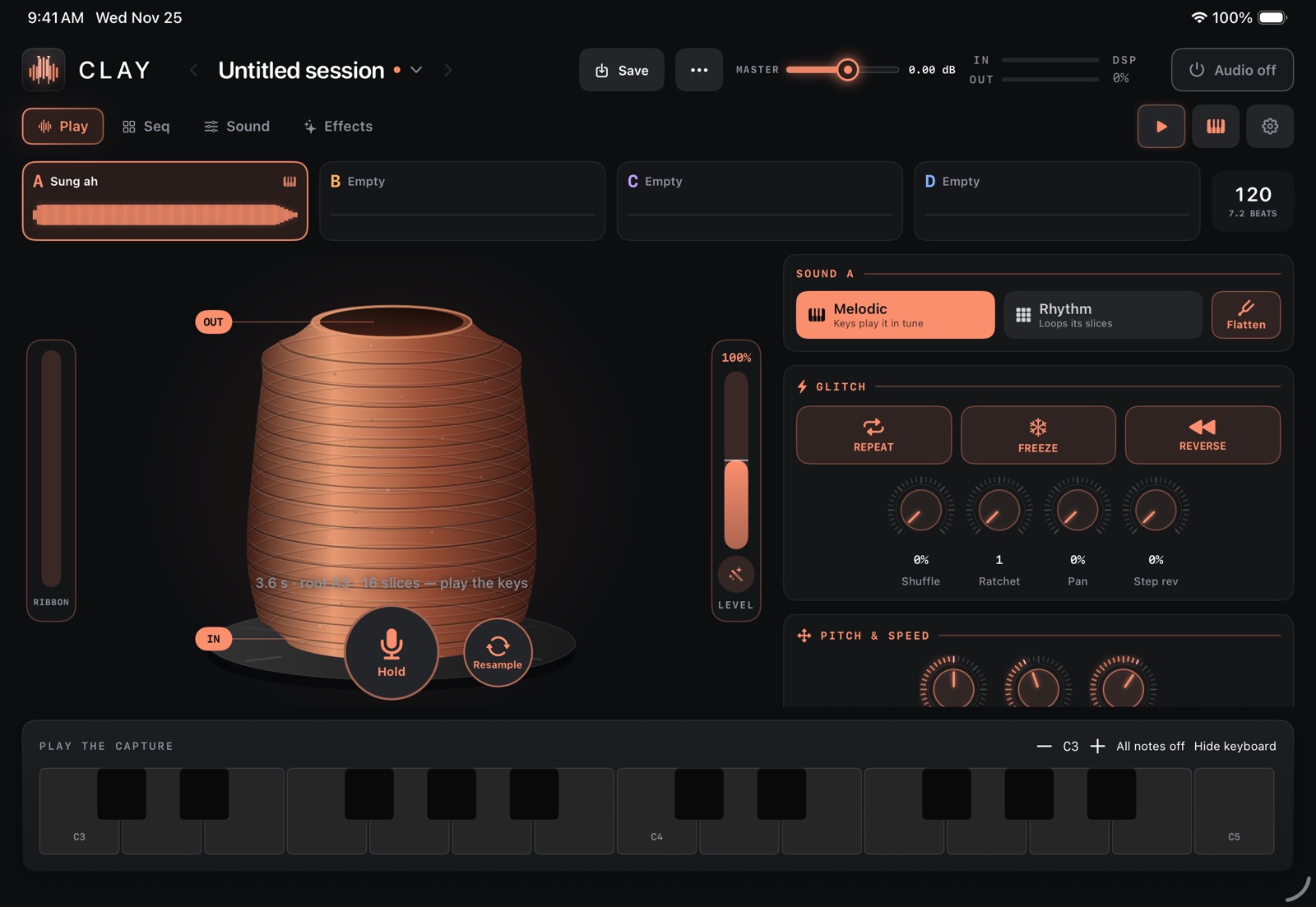
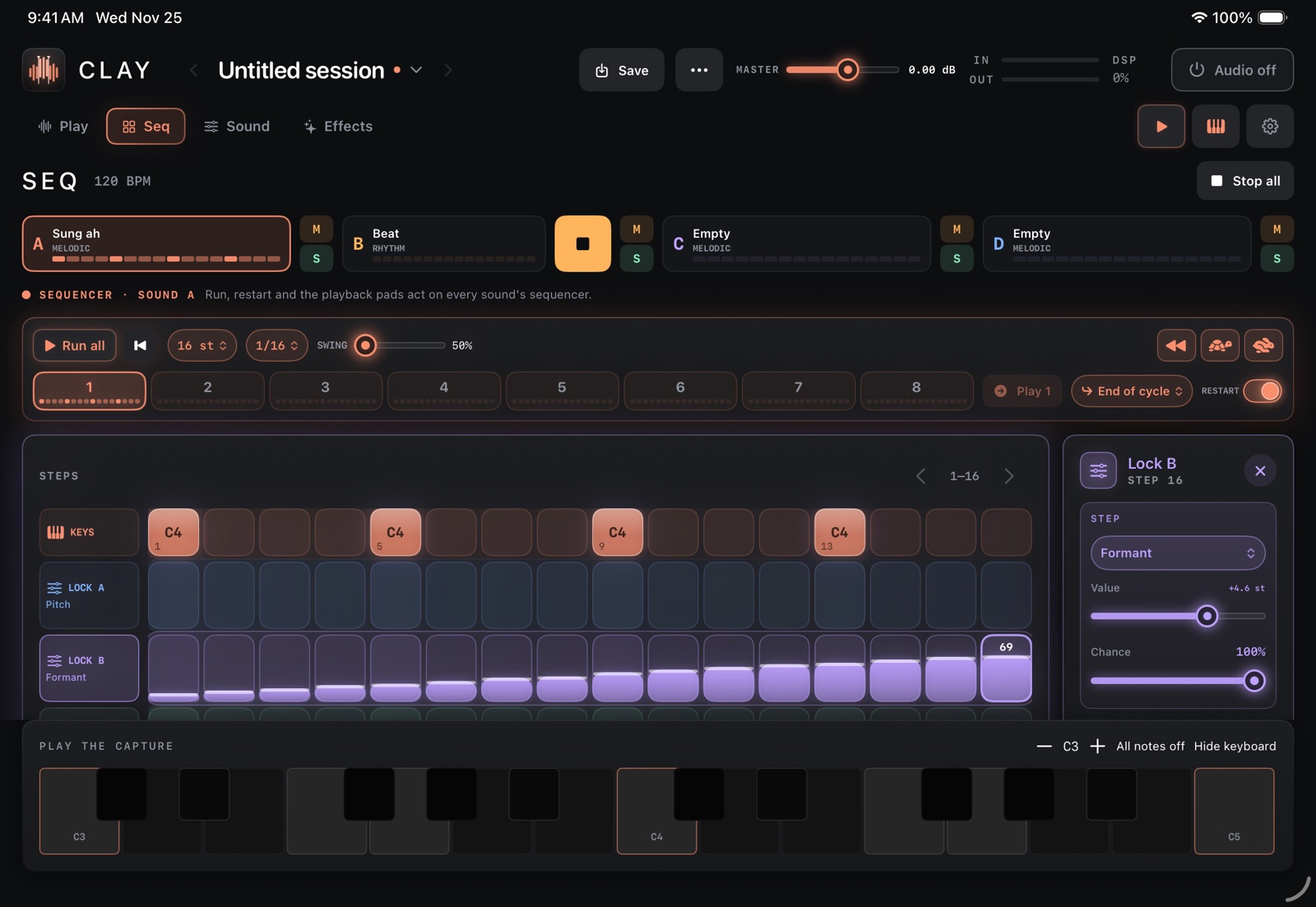
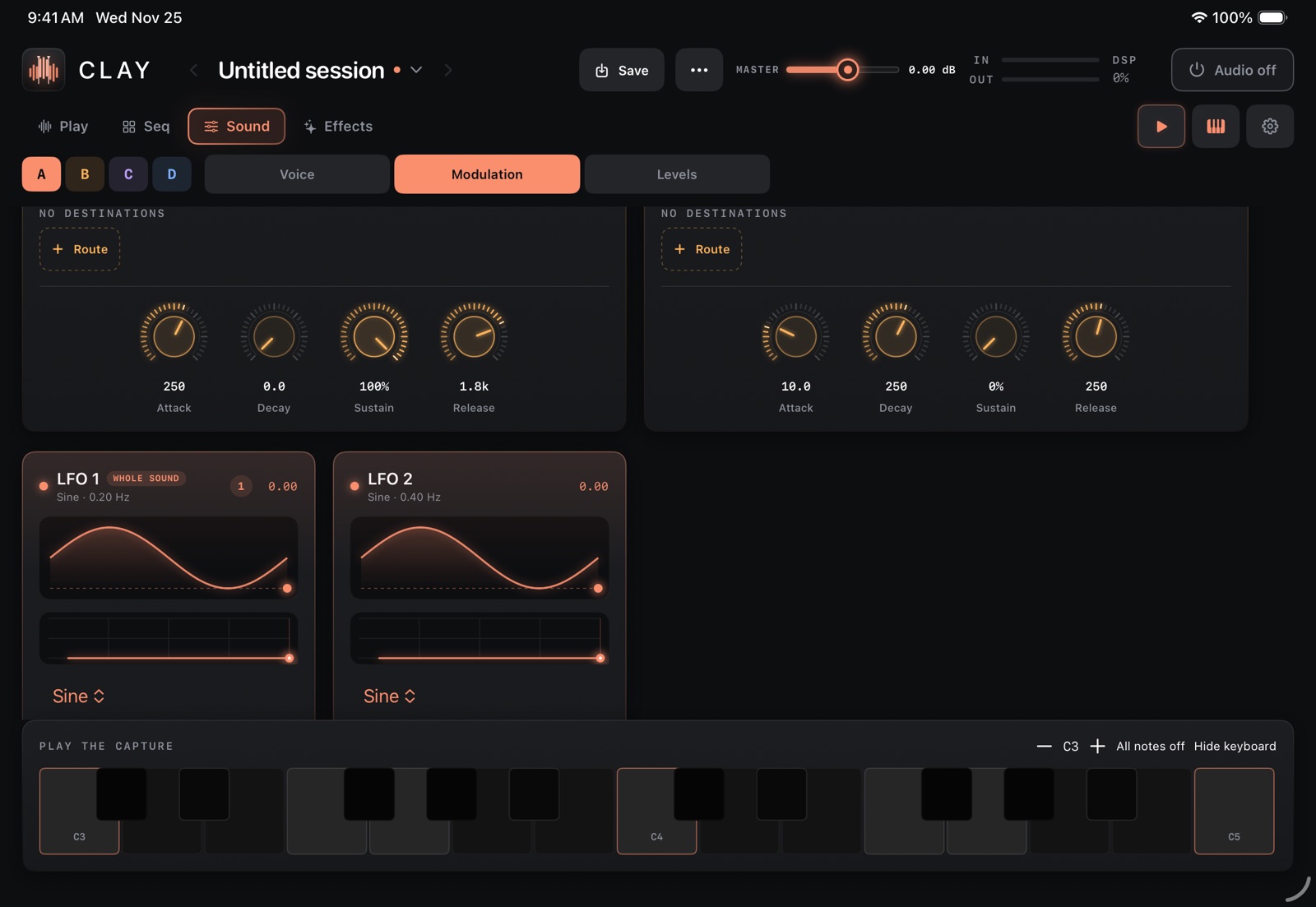
Live Sample Clay 1.0.3 · shown on an 11-inch iPad in landscape
Much of Live Sample Clay explains itself. This is the rest: hidden gestures, and what happens behind some controls.
Hidden gestures
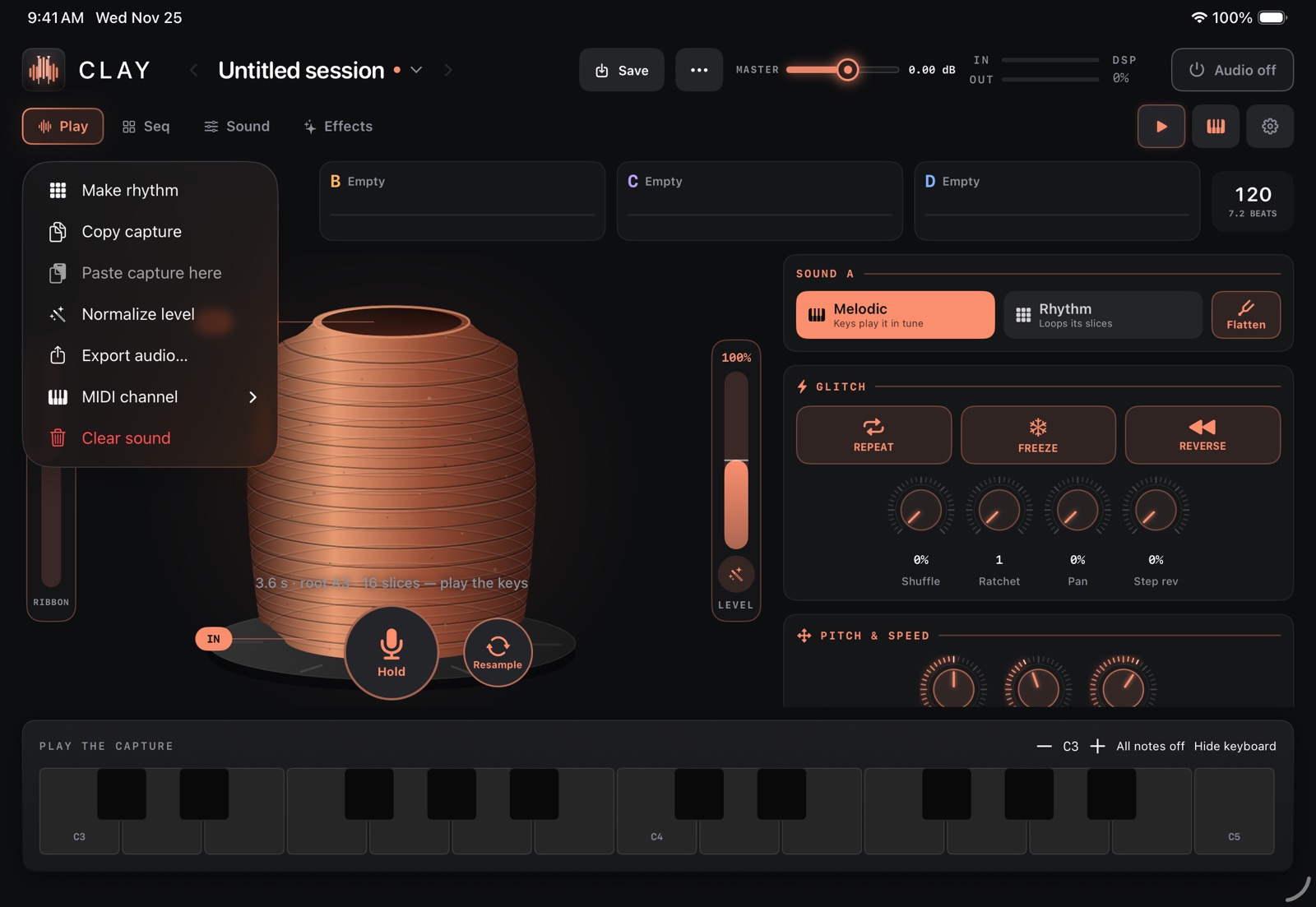
1Touch and hold a sound
Each of the four sounds at the top has its own menu. Use it to switch between melodic and rhythm, normalize or export the audio, give the sound a MIDI channel, or clear it.
Copy capture and Paste capture here move a sound to another slot with its audio, trim, level, voice settings, effects and sequencer. The destination keeps its own MIDI channel, mute and solo. Pasting over a sound asks first and cannot be undone.
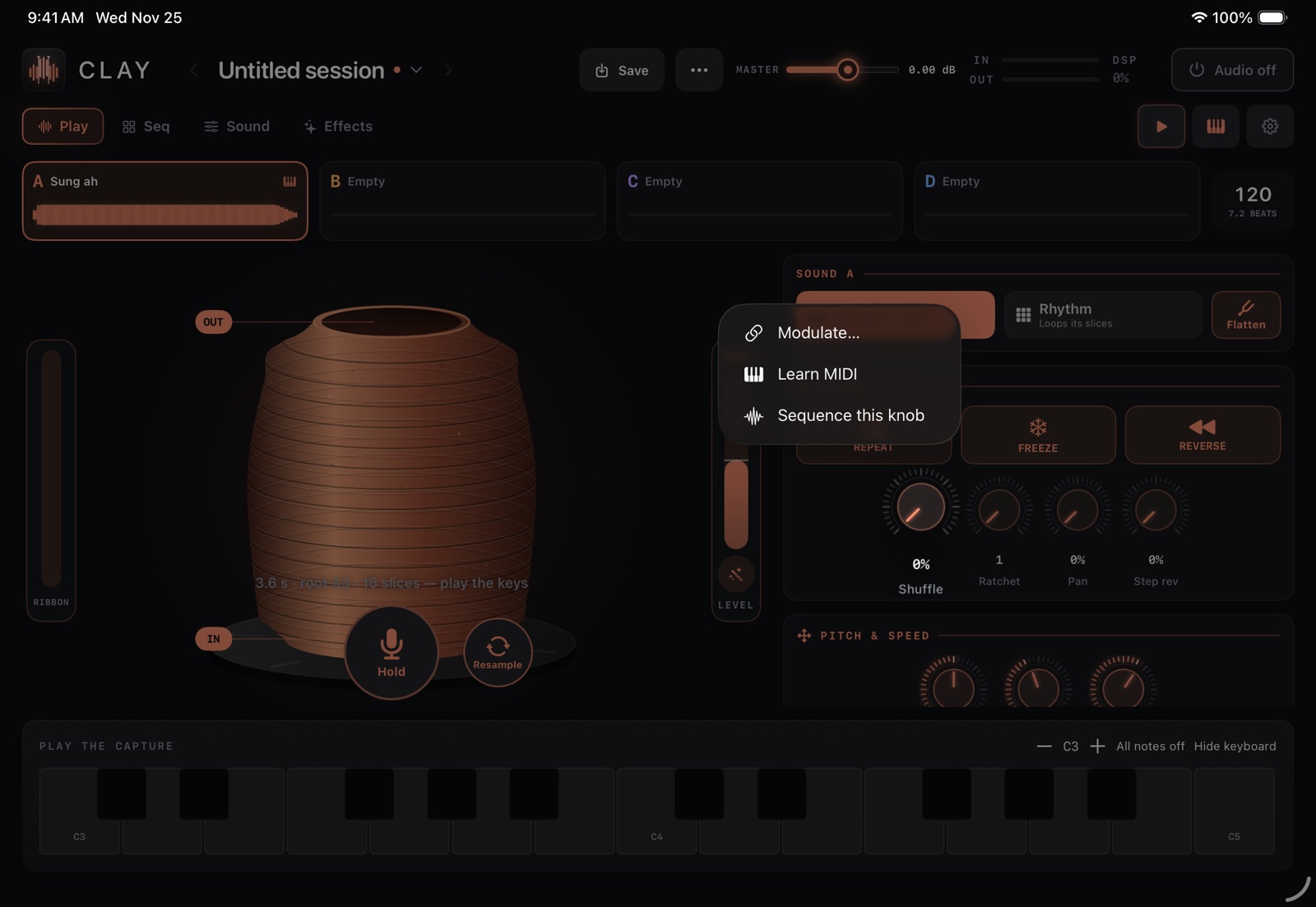
2Touch and hold a knob or pad
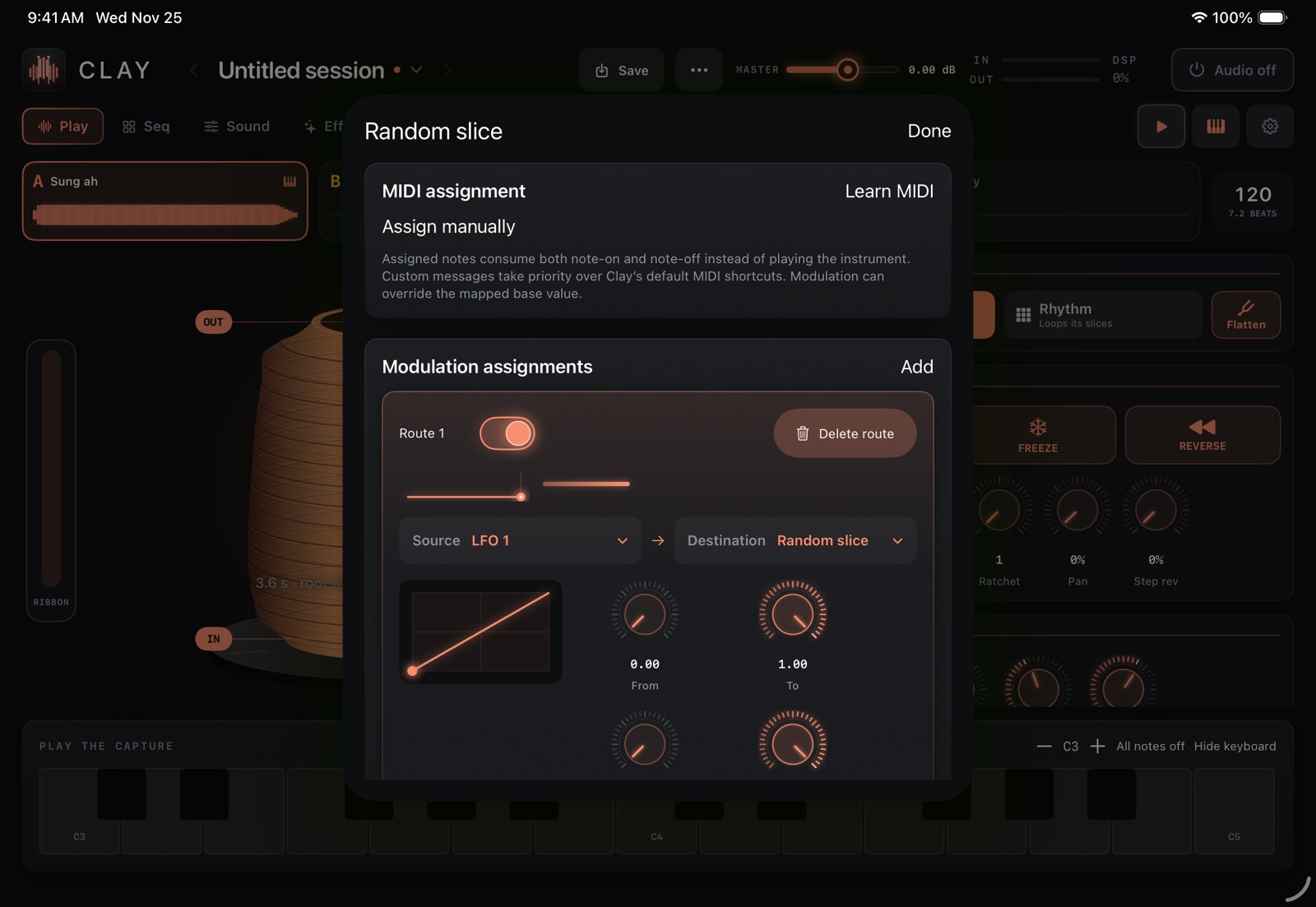
Modulate… connects an LFO or envelope to it. Learn MIDI waits for a control or note from your controller. Sequence this knob gives it the next free lock lane on this sound's sequencer, starting from its current value.
On the ribbon, hold the word RIBBON underneath. The strip itself is for playing.
3Some controls change their names
Menus and sequencer lanes use longer names than the Play page. This is the same control under another name:
Shuffle is Random slice
Ratchet is Repeat multiplier
Chance is Trigger chance
Gate is Trigger gate
In sequencer lane lists, the ribbon is Playhead
4Tap to latch, hold for a moment
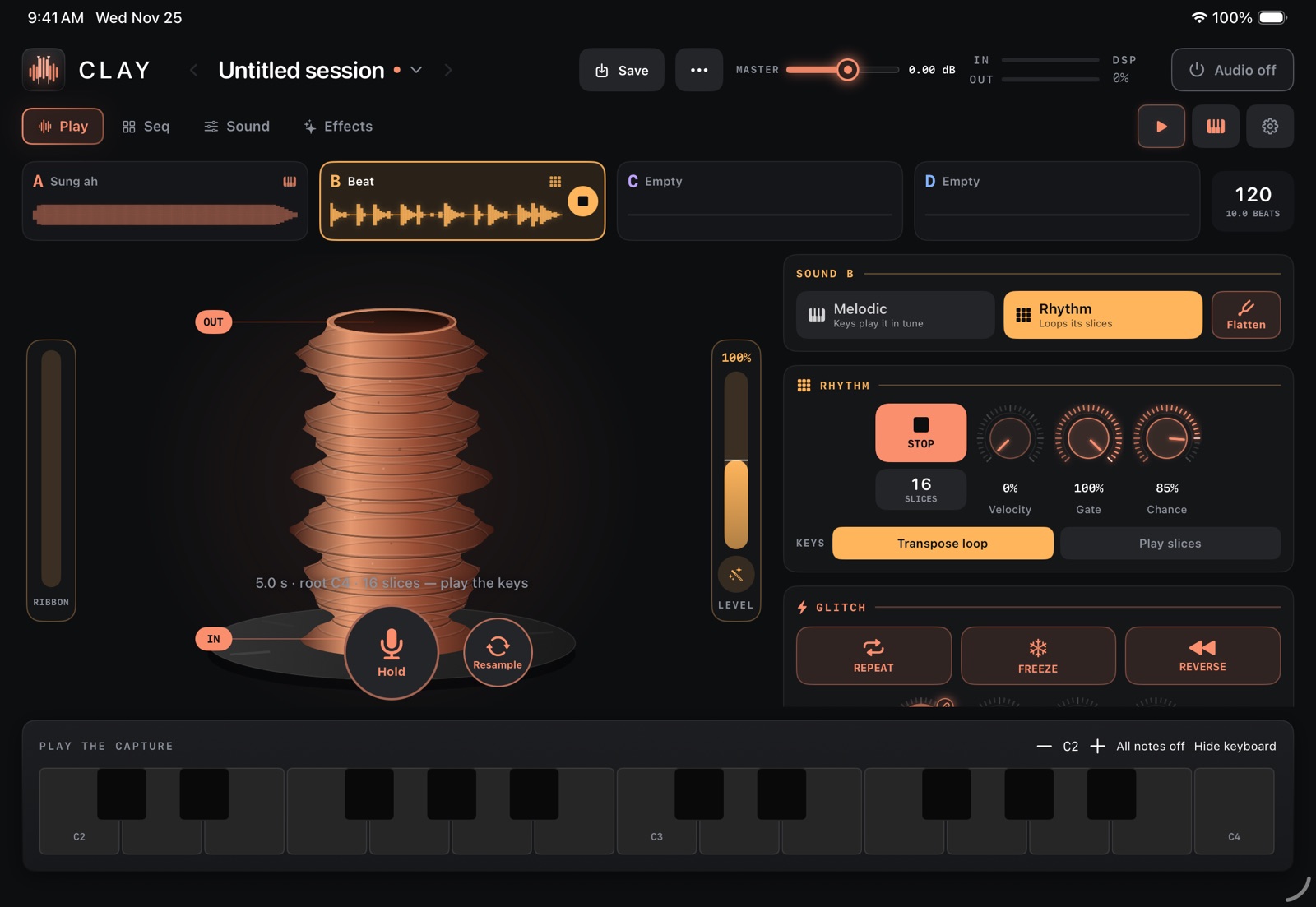
Repeat, Freeze and Reverse do two things. A quick tap leaves the effect on until you tap again. Holding applies it only while your finger is down.
The capture button is similar: hold it to record until you let go, or tap once to start and tap again to finish.
Capturing
5Recording waits for you
After you press the capture button, Clay listens and starts recording once the input is louder than −30 dB, so there is no dead air to trim. A very quiet source will not start it. A capture can be up to 30 seconds long.
When it finishes, Clay finds the root note, cuts the sound into slices and raises a quiet recording to a usable level. A rhythm sound starts looping by itself.
6Resample records Clay itself
Resample records what Clay is playing, effects included, into the next empty sound. It also waits for sound: press it, play, then press it again to finish. The new sound is selected, with fresh keyboard settings because the effects are already in the recording.
If all four sounds are full, Resample records over the one after the selected sound.
7The clay is the editor
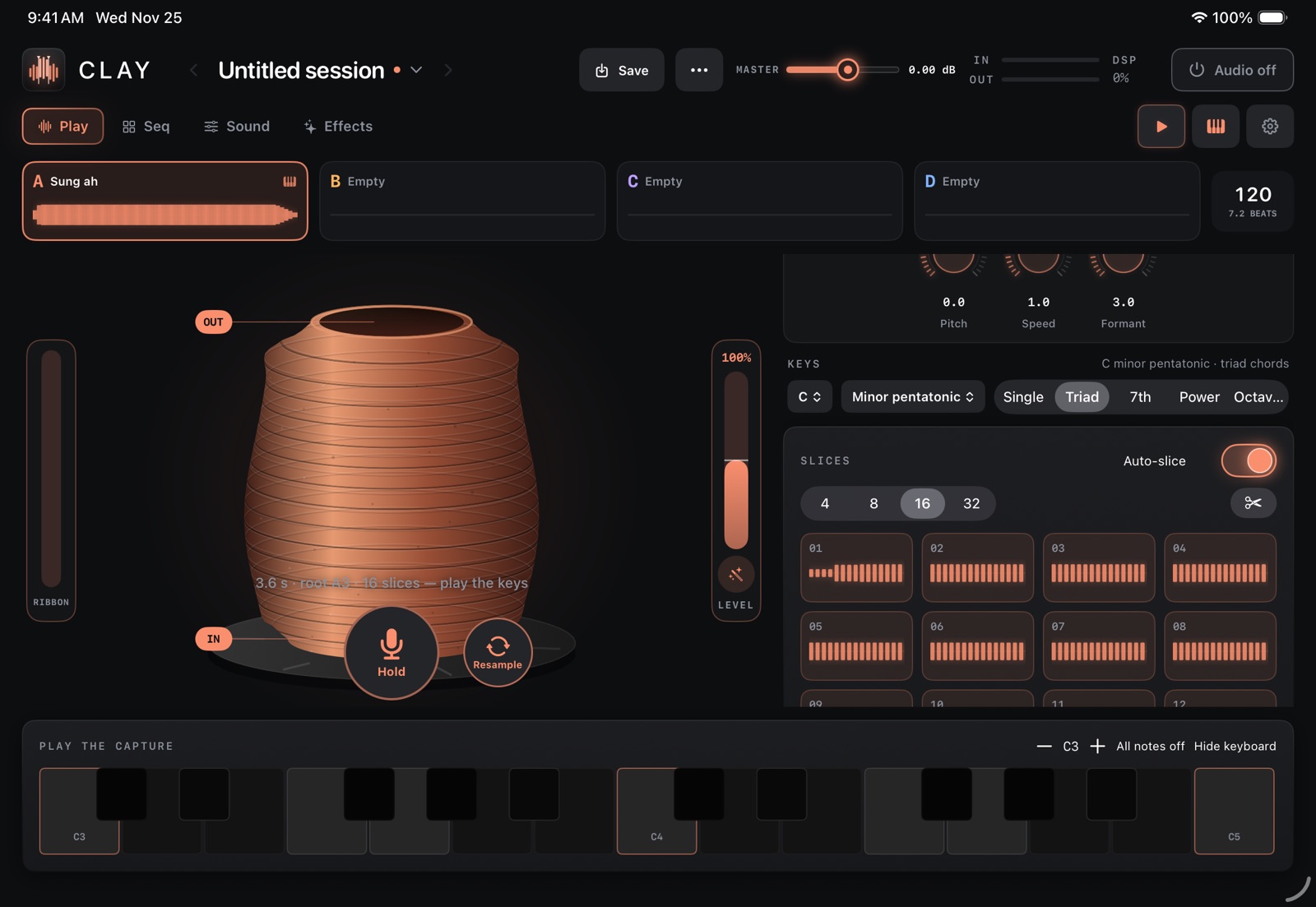
Drag IN and OUT up or down to trim the sound.
Level is 100% at the middle line and goes up to 1600%. Double-tap to return to 100%. The wand button normalizes.
The ribbon scrubs through the sound while you touch it. It takes over from slice sequencing and the glitch controls, and when you let go, playback carries on from where you left it.
Playing
8Screen keys and MIDI choose sounds differently
The on-screen keys always play the selected sound, and playing one starts audio if it is off.
From a MIDI controller, a sound set to Omni plays when it is selected. A sound given a MIDI channel plays from that channel whichever sound is selected. Set it from the sound's menu.
9A key and scale leave no wrong notes
Under Keys on a melodic sound, pick a root and a scale. Keys outside the scale are dimmed and snap into it. Triad, 7th, Power and Octaves play a chord from one finger. This applies to MIDI notes too.
10Keys on a rhythm sound
Transpose loop: if the loop is stopped, a key plays it for as long as you hold it. If it is running, a key only changes its pitch. The next time you start it with the play button, it is back at its original pitch.
Play slices: each key plays one slice. C2 is the first, and keys above and below wrap around.
11Layer another sound under the keys
With a melodic sound selected and set to Poly, touch and hold a different sound and choose Stack under the keys. It then plays along, looping its whole trimmed length, pitched from its own root. Choose Unstack from the keys to stop.
12Flatten makes a second copy
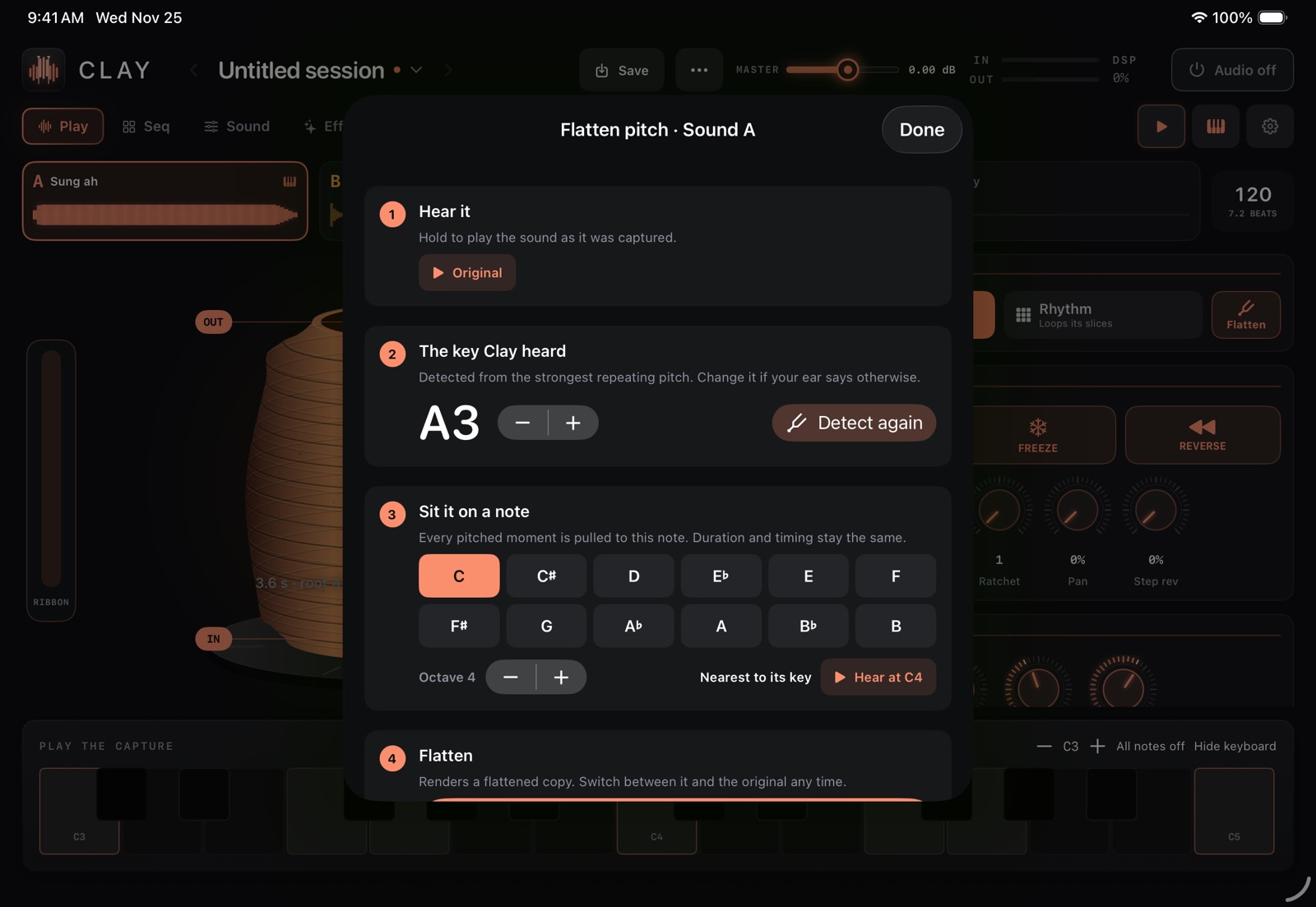
Flatten pulls every pitched moment of a one-note-at-a-time phrase to a single note, keeping its timing. If the detected key sounds wrong, change it before flattening. Your original stays: you can switch between the two at any time.
Sequencer
13Four sequencers, one transport
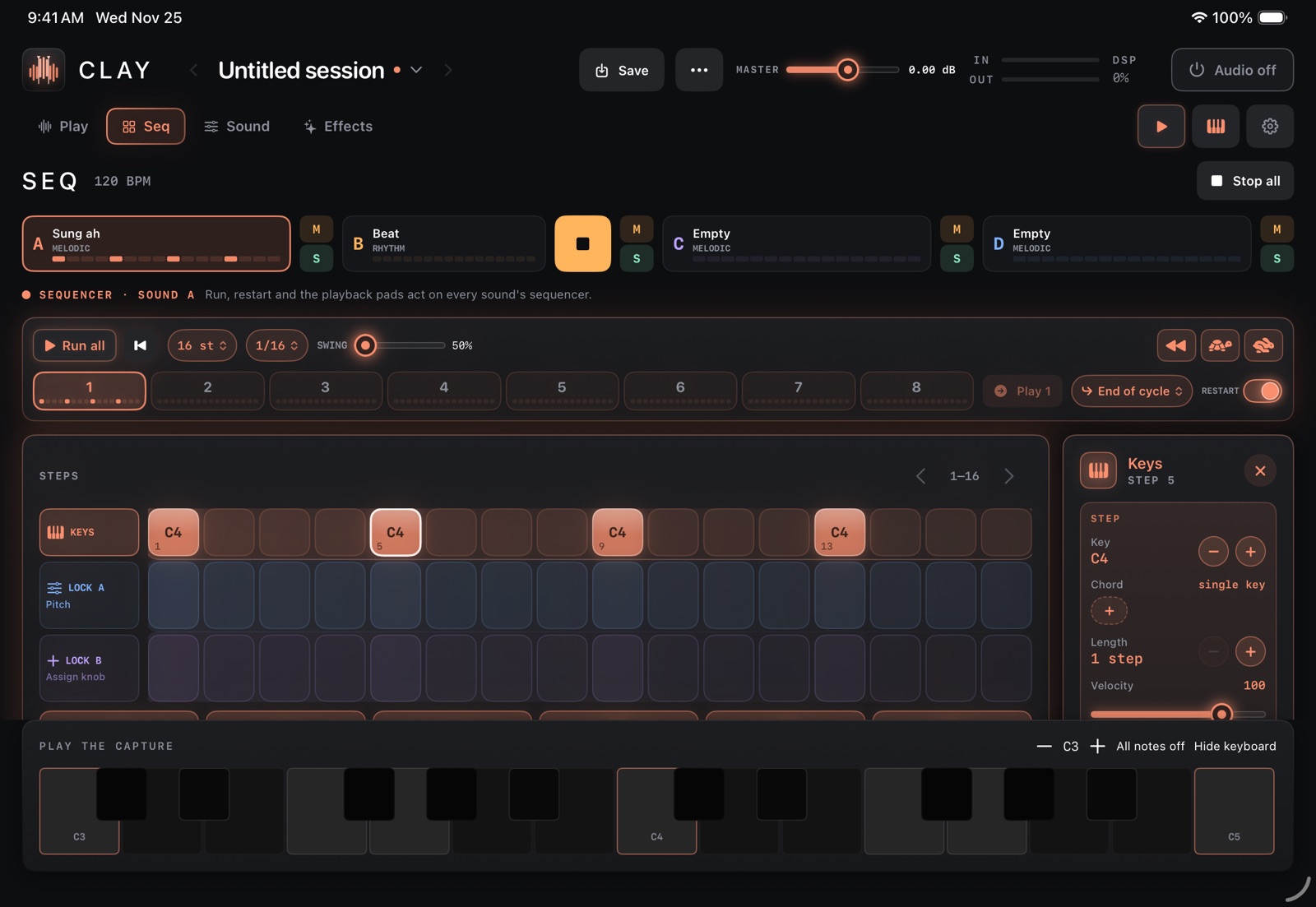
Each sound has its own sequencer. Run all, restart and the held Reverse, ½× and 2× pads act on all four, and those three pads also change how every sound plays.
M mutes and S solos a sound, effect tails included. Muted sequencers keep running, so they come back in time.
14Edit steps by touch
Keys lane: tap an empty step to add a note, and tap the selected note again to remove it. Drag right to make it longer. Hold keys on the keyboard while tapping a step to write them as a chord.
Lock lanes: tap to set a value at the height you touch, drag across to draw, and tap the selected bar to clear it. An empty step keeps the previous value. The exception is a Playhead lane, where an empty step lets playback carry on normally.
15Selecting a pattern does not play it
Tap one of the eight patterns to edit it while the current one carries on. To play it, tap it again, hold it, or press Play with its number. The menu beside that button sets when it takes over: Next step, End of cycle or At step. With Restart on it begins at its first step; off, it joins at the current position.
Modulation, saving and MIDI
16Per voice or whole sound
Where you send an LFO or envelope changes how it runs. Sent to pitch, formant, filter, comb or resonator, it runs separately for each note, and an LFO restarts with each one. Sent anywhere else, it runs once for the whole sound. The badge on its card tells you which.
17Unsaved work comes back, but is not saved
Clay keeps your work when you leave the app and brings it back next time. Only Save adds it to your sessions. A dot beside the session name means there are unsaved changes.
MIDI without any setup
Program changes 0–7 queue patterns 1–8 on the selected sound.